Confirm the feature exists in your build
Check the Ryubing release notes for your installed build. Turbo Mode was documented in Ryubing 1.3.1; older or differently packaged builds may expose different controls.
Speed controls explained
Ryujinx Turbo Mode changes how quickly emulated CPU time advances when you activate its configured hotkey. Set the multiplier in CPU settings, choose whether the key is held or toggled, and test one local game before making it part of a routine. It is a time-speed control, not a promise of higher graphics FPS.
$ CPU settings: choose a multiplier
$ Hotkeys: bind Turbo Mode
$ Activation: hold or toggle
$ Test: compare one repeatable scene
The exact menu labels can vary by Ryubing build.
Check the Ryubing release notes for your installed build. Turbo Mode was documented in Ryubing 1.3.1; older or differently packaged builds may expose different controls.
Open the app settings and locate the CPU speed multiplier. Begin with the default or a small change, not the largest value available.
Pick a key you will not press by accident. Decide whether Turbo Mode should remain active after a tap or only while you hold the key.
Use a repeatable scene in one game. Activate the hotkey briefly, release or toggle it off, and verify that normal timing returns.
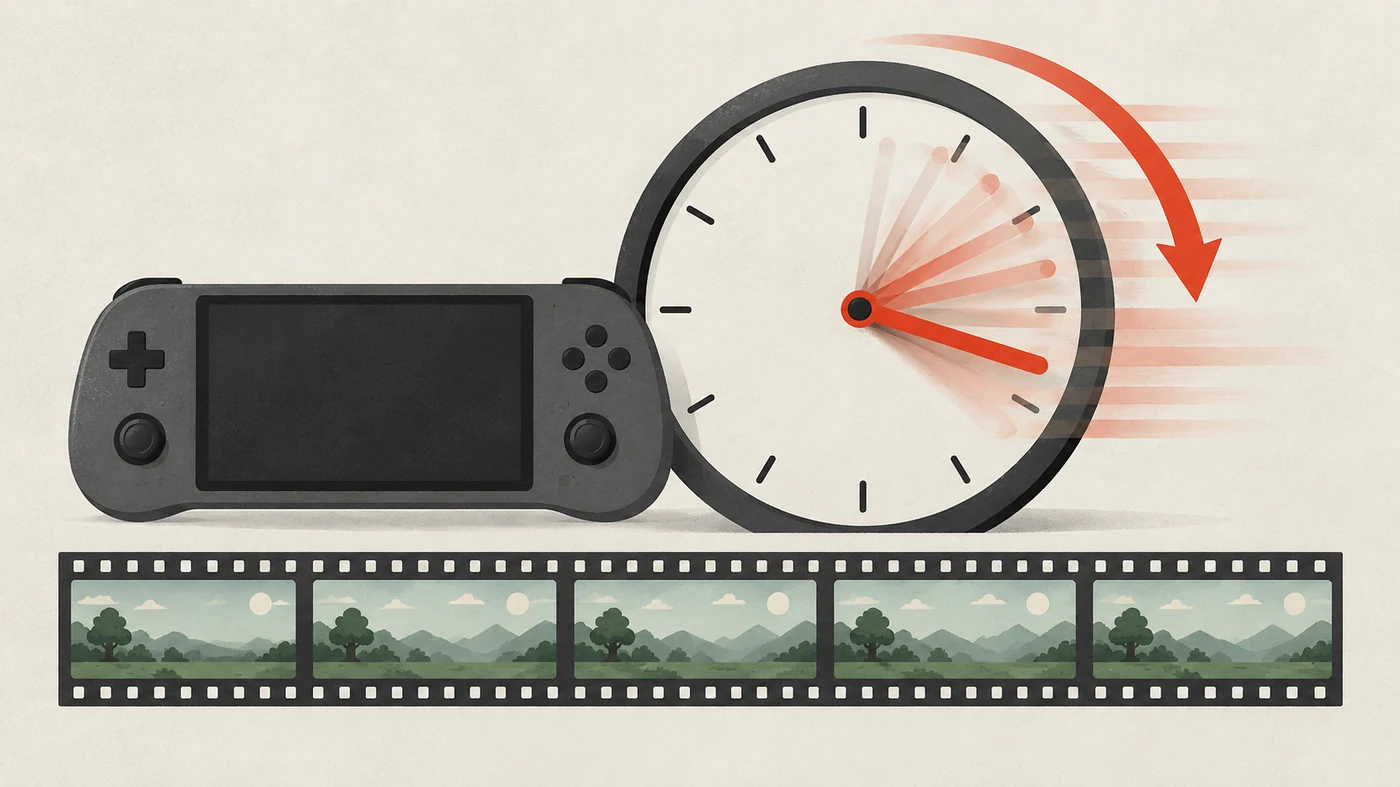
Concept art for this guide, not a Ryujinx screenshot. The clock represents accelerated emulated CPU time; it does not show a measured frame-rate result.
Ryubing's 1.3.1 release notes describe Turbo Mode as a hotkey that multiplies elapsed CPU ticks. This can advance games that depend on elapsed time, and the notes say some FPS-locked games may benefit. It does not guarantee more rendered frames or correct timing in every title. Results depend on the game and build, so treat Turbo as a temporary test: switch it off if input, physics, or scene timing becomes unreliable.
Check the controls in your installed build. Ryubing 1.3.1 places the speed multiplier in CPU settings and uses a separate Turbo Mode hotkey; menu labels and defaults may vary. Record the current multiplier, choose a binding that avoids the game and desktop shortcuts, and confirm whether your build offers hold or toggle. Save one change at a time and verify it persists. If the controls are absent, check matching release notes instead of copying an unverified binding or replacing files.
Ryubing 1.3.1 supports hold-to-activate and tap-to-toggle behavior. Hold stops when the key is released; toggle stays active until pressed again. Pick the mode that is easiest for you to recognize and stop, then check its state in a menu or repeatable scene. A toggle can be missed, while a hard-to-reach hold key can be awkward. Confirm that normal timing returns before using the mode in a long play session.
| Mode | What to verify | Useful when |
|---|---|---|
| Hold | Speed returns when the key is released | You want a short, deliberate burst |
| Toggle | A second press clearly restores normal timing | You need a longer temporary interval |
| Either | The binding does not conflict with another action | You are testing a new profile |
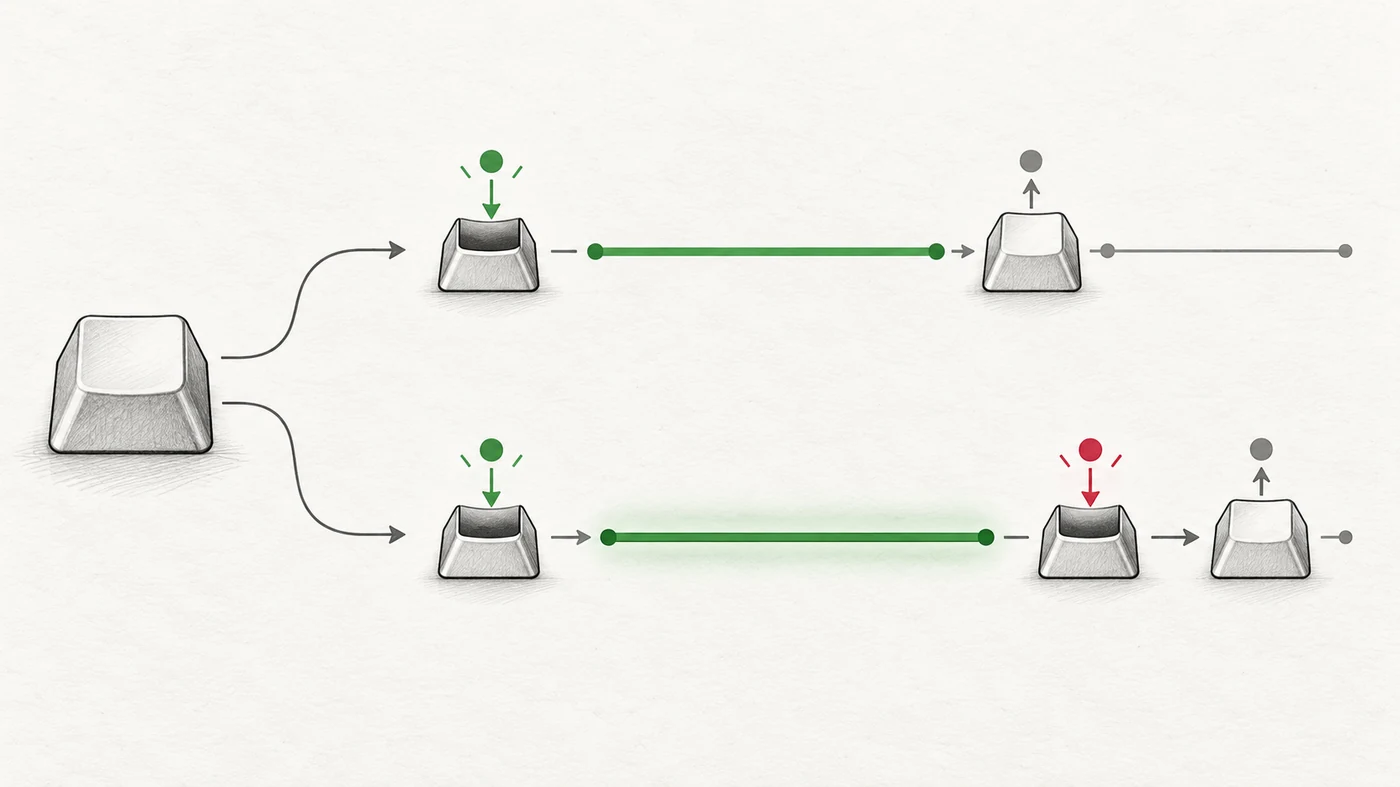
Fast-forward searches can mix up time speed, frame targets, and frame pacing. Turbo Mode multiplies CPU ticks through a hotkey. A per-game 60 FPS mod changes a title's frame behavior, while graphics settings target rendering. These controls are not interchangeable: a game may advance faster without rendering more frames, and an FPS patch does not provide the Turbo hotkey. Choose the guide that matches the observed problem and test one change at a time.
| Goal | Control layer | How to test |
|---|---|---|
| Advance game time faster | Turbo Mode and its CPU tick multiplier | Observe a repeatable time-based action, then switch back |
| Change a game's frame target | A title-specific 60 FPS mod | Match the game/update and compare a clean baseline |
| Improve rendering consistency | Graphics backend, driver, or frame pacing | Change one graphics variable and compare the same scene |

Choose one local game and a short scene that is easy to repeat. Keep the build, save, graphics settings, and input device constant. Note the baseline, activate Turbo briefly, then switch it off and repeat the same action. This separates a timing change from a loading pause, frame-rate fluctuation, or missed key. Avoid an important unsaved section for the first test. If the result varies, return to normal speed and change only one setting before testing again.
If nothing changes, confirm the feature exists, the binding saved, and the game window receives the key. If speed stays high, check whether Turbo is toggled on and press the binding again. If timing or physics look wrong, disable Turbo and restore the recorded multiplier. Avoid changing graphics backends, deleting caches, or replacing files to diagnose a hotkey. For a build-specific regression, record the build and repeatable scene; some games may not suit a timing multiplier.
Feature details on this page come from Ryubing 1.3.1 release notes dated April 24, 2025. They document a configurable Turbo hotkey, CPU tick multiplier, CPU settings control, and hold or toggle behavior. They do not specify a universal key or guarantee every game will behave correctly. This historical reference is not a claim about the newest build; check notes for your installation. This site does not provide games, keys, firmware, or emulator packages.
The feature details and activation choices below are grounded in this Ryubing release note.
The Ryubing 1.3.1 notes describe a configurable hotkey but no universal default. Check and verify the binding in your installed build.
The notes place it in CPU settings. Menu labels may vary, so check release notes for your build and record the original value.
Not necessarily. Turbo Mode advances CPU ticks; 60 FPS mods target title-specific frame behavior, and graphics settings affect rendering.
Use the mode you can notice and stop. Hold ends on release; toggle needs a second press. Test in a safe scene.
Check whether Turbo is still active, especially in toggle mode. Turn it off, restore the original multiplier, and retest at normal speed.
No universal result is guaranteed. Game timing differs, so test a repeatable scene and return to normal speed if behavior is unreliable.
No. Turbo Mode changes CPU tick progression. A 60 FPS mod changes title-specific frame behavior; test them separately.